Meta Muse Registration Guide 2026
Meta Muse, launched by Meta in September 2026, is a personal AI agent focusing on long-term memory and autonomous task execution. It has its own cloud-based computer and browser, enabling it to search for information, process emails, book trips, and even perform complex operations across applications. The official website is muse.ai, and users can log in directly using their Meta account system. This guide combines two practical tutorials, summarizing registration requirements, environment configuration, operation steps, and solutions to common problems.
Prerequisites you must understand before registering
It is important to note that being able to access the official website does not mean that the account has been authorized for use . Being able to access a webpage and having your account pass a regional check are two different things.
Step 2: Create a new Muse dedicated browser profile
Set a name and notes: Choose an easy-to-recognize name, such as " Meta Muse Work ". If you have multiple accounts, use groups or notes to distinguish their uses.
Enter the platform URL: Set it to https://muse.ai/, and the profile will open directly to the official website.
Configure and test the proxy: Bind the purchased US proxy information, click "Intelligent Detection", confirm network connectivity and whether the actual export country is correct, and then open the profile.
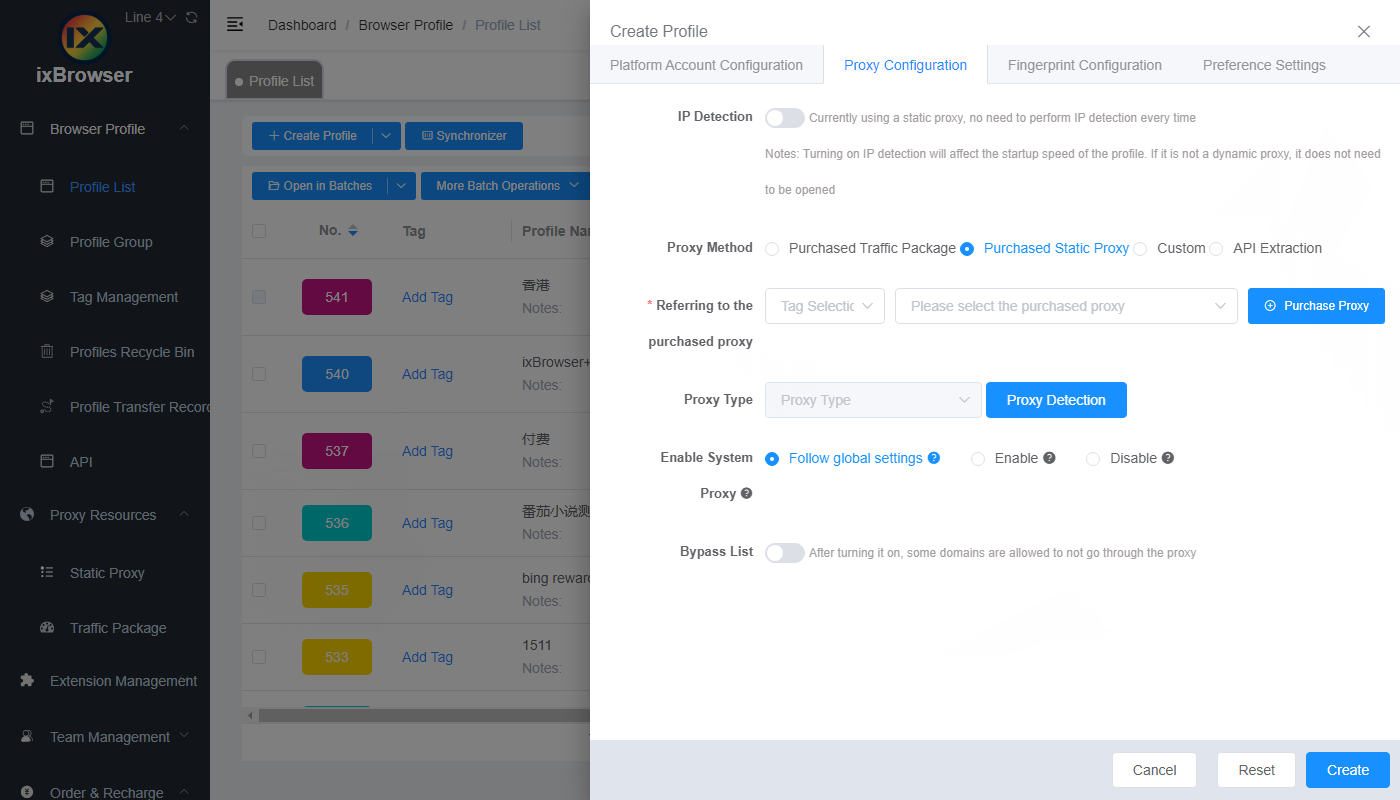
Fingerprint parameters: When using ixBrowser for configuration, there is no need to adjust the fingerprint parameters. The system will automatically generate independent fingerprint parameters for you when creating a profile .
In this way, a dedicated Muse environment with independent cookies, browser fingerprints, and a US residential IP address is set up.
Using a highly clean residential IP address and ensuring the fingerprint matches the network environment may allow you to skip the card binding verification and directly access the user interface . However, please note that the success rate is significantly random. Muse considers multiple factors besides the outgoing IP address, including browser fingerprint, account signal, and historical environment. The same environment may yield different results at different times. It is recommended to prepare multiple different residential IP addresses for testing and prioritize maintaining a long-term stable environment.
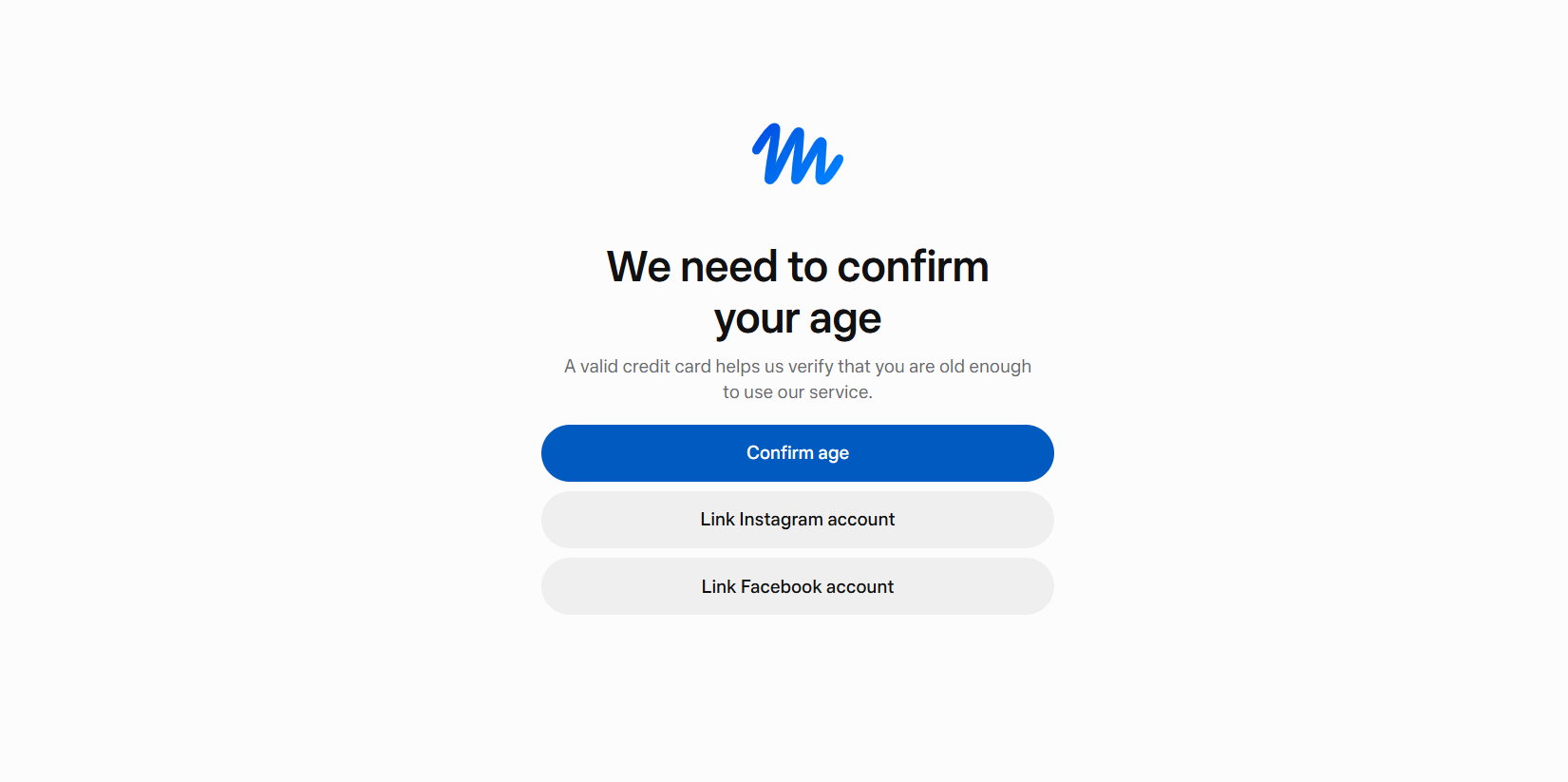
1.Link your social media accounts : When prompted to “Link Instagram account” or “Link Facebook account”, select the corresponding account you already have, review the linking instructions, and continue. Keep an eye on the verification results.
2.Credit Card Verification : Selecting "Confirm age" will redirect you to the Meta payment page, where you will need to fill in your card number, expiry date, CVV, select "United States" for Country or region, and enter your US zip code for ZIP code. A $1 pre-authorization will be deducted during verification, which will be refunded within 5-7 business days . This is only for confirming adulthood and is not a subscription. The date of birth and billing information you enter must be accurate, and the billing country and zip code must correspond to the cardholder's statement.
If verification fails, you should first check your account or verification information according to the on-screen instructions. It is not recommended to submit repeatedly . If you still cannot pass the verification, you can wait a few days and try again.
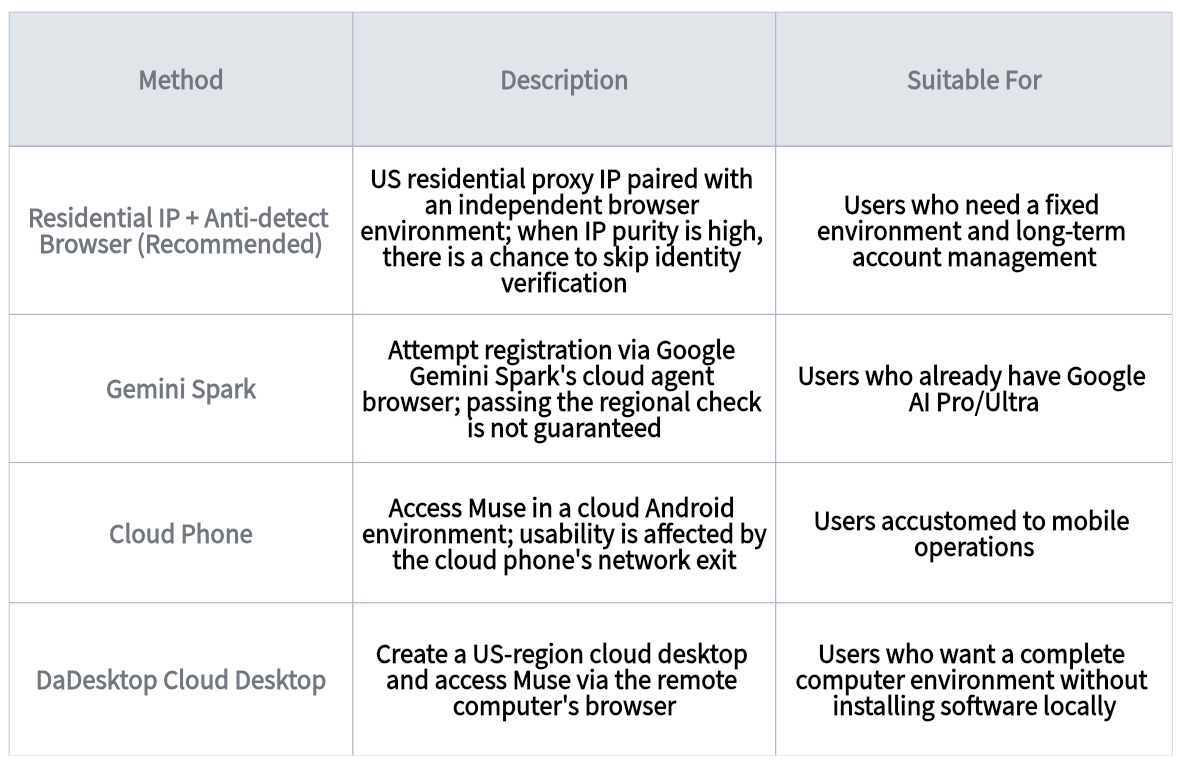
Cloud Phone : Create an independent Android environment, configure network, language, and time zone, open Chrome, visit the Muse website, and register as prompted. After successful registration, you can install the Muse App on Google Play. Cloud phones provide an independent mobile device environment, but cannot guarantee the removal of regional restrictions.
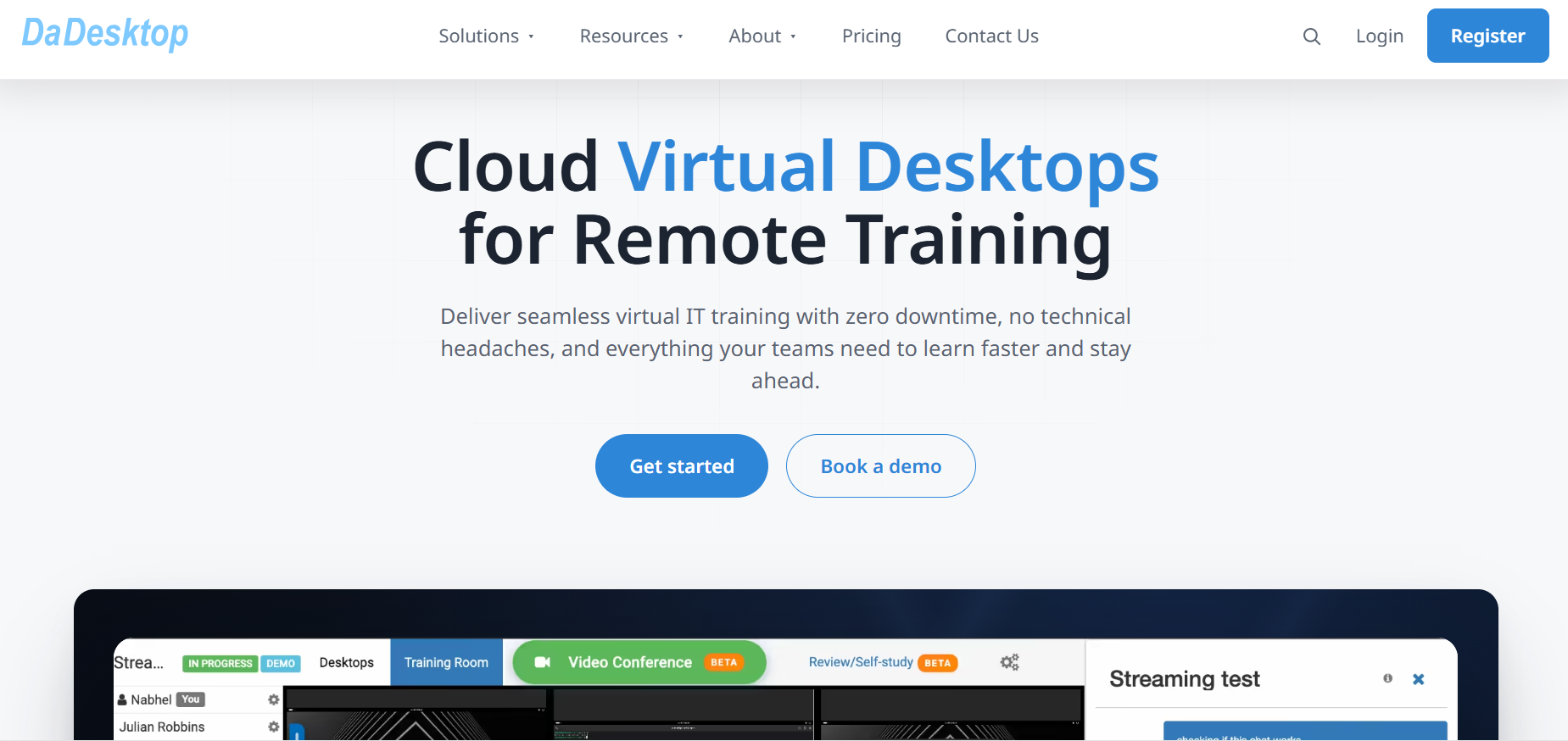
DaDesktop Cloud Desktop : Create a cloud desktop in the US (starting from approximately $3/day, Windows licenses may incur an additional $1/day), and register via a browser within the remote desktop by accessing the Muse website. The advantage is that it eliminates the need for local proxy configuration.
within 48 hours of registration : After logging in, go to Settings → General → Usage , find "Redeem invite code," enter a valid invitation code, and you can check the crediting status on the "Additional tokens" or Usage page after successful redemption. For the mobile app, you can find the Redeem token entry in Settings. Specific eligibility and reward amounts are subject to the current redemption page.
Muse fully supports Chinese, allowing users to ask questions and assign tasks directly in Chinese.
1.The message "You are currently unable to create a new account" is mostly due to an incorrect network exit country or repeated attempts in a browser used for logging into multiple accounts. Follow the steps above to create a dedicated window, configure a US/Canada proxy, test your network connection, and then reopen Muse. If you successfully access the CAPTCHA or age verification page, the environmental obstacle has been eliminated. If you still receive the message, stop and do not repeatedly submit. Take a screenshot of the complete message. If the page simultaneously displays a security check or identity verification request, complete the verification first; otherwise, you will need to contact Meta support.
2.The region is unavailable : Check the actual export country in the dedicated profile and verify the account against the open conditions listed on the page.
3.Displaying "Waiting for Opening" or "On the Waiting List" : Check if there are any entry points on the page to join the waiting list or confirm your contact information. If so, submit and save the result. If the page does not provide a specific opening time, you can only wait for the platform to notify you.
If you are logged in but the connection keeps showing as "connecting" : First, check the network connection of the profile in the anti-detect browser. If the check fails, check the proxy configuration and whether the node is available; if the check is normal but Muse is still spinning, record the operation steps, complete prompts, and the time of occurrence, and hand it over to platform support for processing.
Prerequisites you must understand before registering
1. Regional and age restrictions
As of October 2026, Muse is only available to users aged 18 and over in the United States and Canada . The system determines the user's region; if identified as being from an unavailable region, the page will display the message "Muse is not yet available in your country or region," or redirect the user to the waitlist, preventing access to the registration page. This is the first hurdle encountered by users in China.It is important to note that being able to access the official website does not mean that the account has been authorized for use . Being able to access a webpage and having your account pass a regional check are two different things.
2. Prepare contact methods that can be used long-term.
Muse uses the Meta account system, supporting account creation via Facebook, Instagram, email, or phone number . The email or phone number used for account linking must be able to receive emails consistently and reliably – this is required for subsequent Meta logins, password resets, and security checkpoint verifications. Registering with temporary contact information will make account recovery extremely difficult later.3. Understand the differences between local windows and cloud environments.
The browser and file system that Muse actually uses to perform tasks run on a cloud computer provided by Meta; the browser profile you open locally is just a login entry point . The anti-detect browser manages the account status and network settings of this login entry point.
Recommended Solution: Anti-detect Browser + US Residential IP Address (Detailed Steps)
Taking anti-detect browsers such as ixBrowser as an example, the core idea is: the proxy provides the network exit for the corresponding region, and the anti-detect browser fixes the startup URL, proxy configuration and cookies in the same independent profile .Step 1: Prepare a US residential IP address
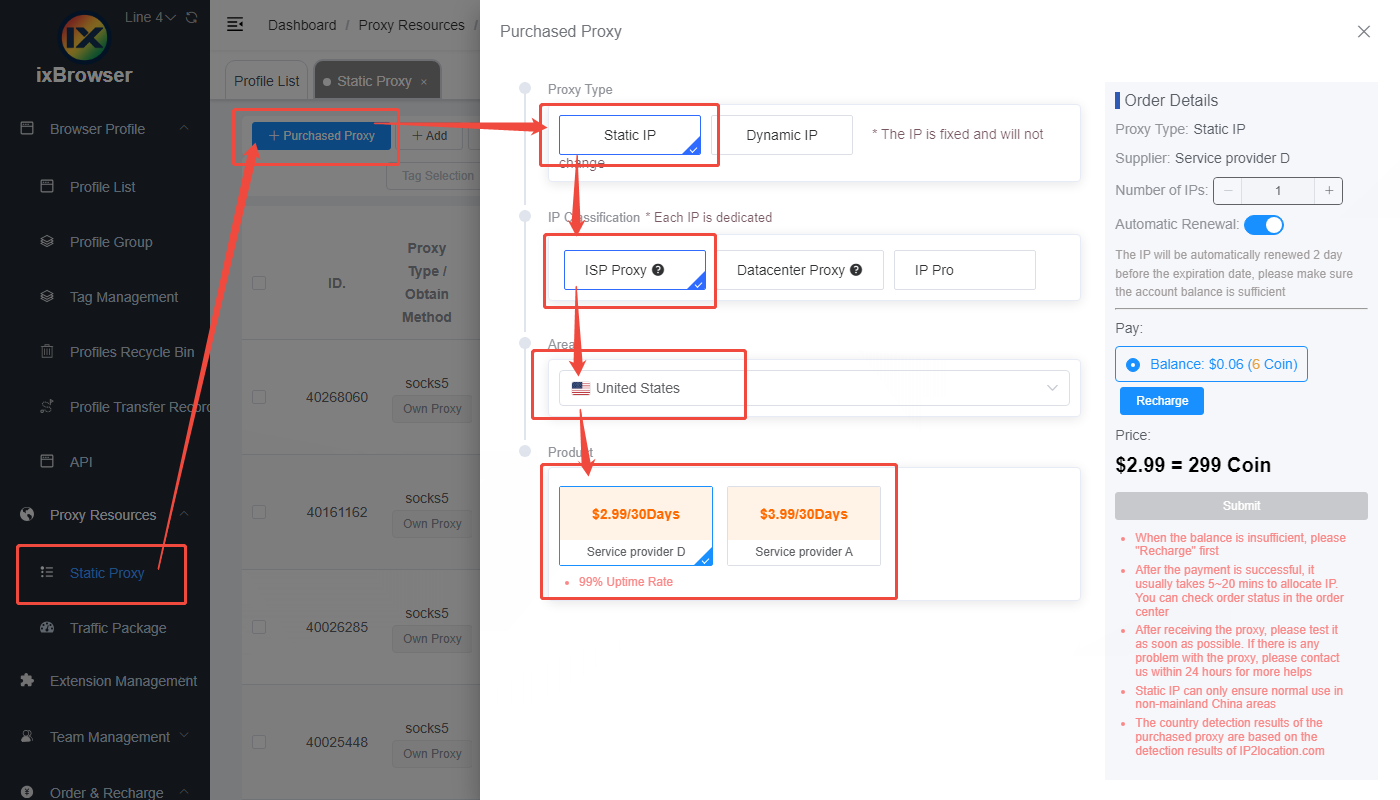
If you already have a residential proxy, you can directly use the address, port, protocol, and account password provided by your service provider. If you don't have one locally, some anti-detect browsers (such as ixBrowser ) support purchasing a residential proxy directly within the client—go to "Proxy Resources → IP Resources ," select static residential proxy, and choose the United States as the region. After purchase, the proxy will automatically be added to the proxy list, and you don't need to manually extract the parameters.Step 2: Create a new Muse dedicated browser profile
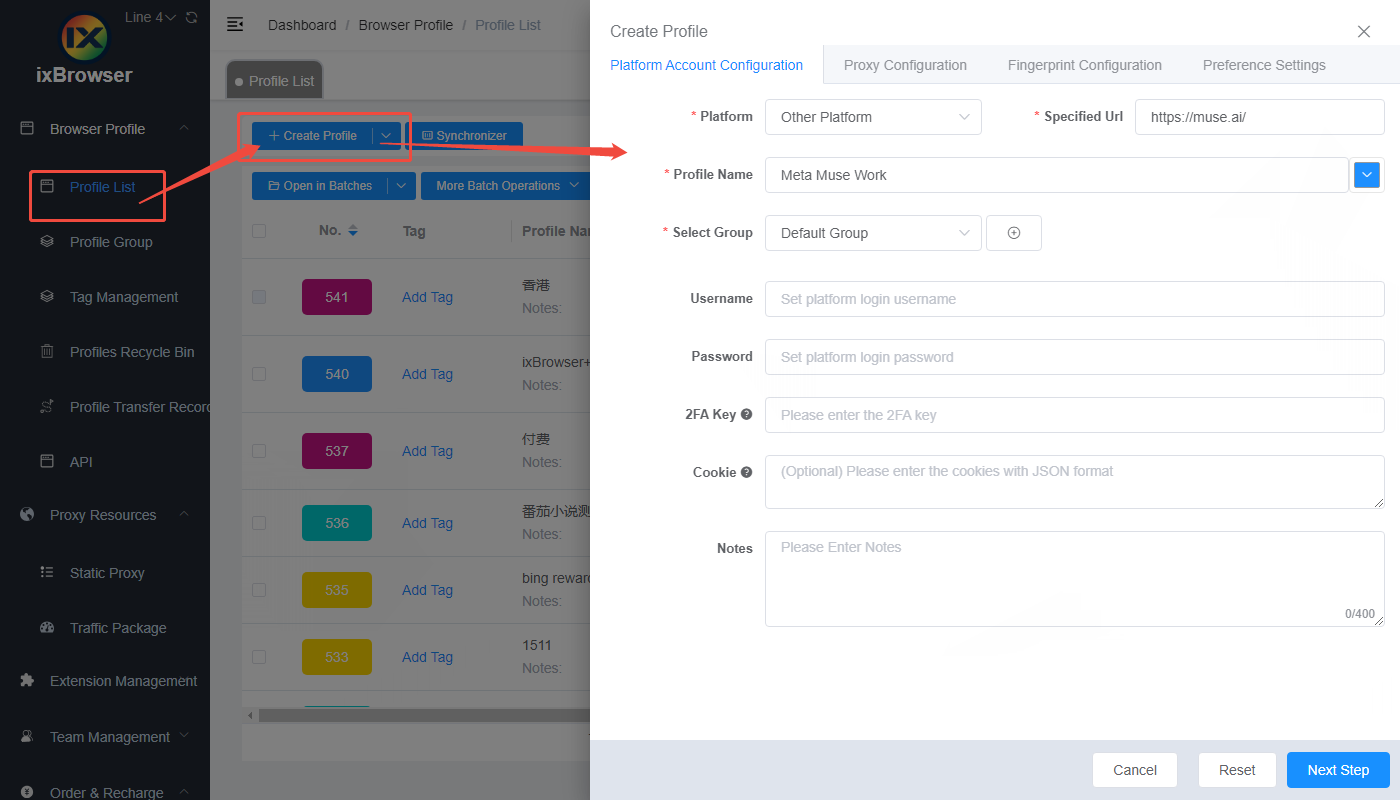
Set a name and notes: Choose an easy-to-recognize name, such as " Meta Muse Work ". If you have multiple accounts, use groups or notes to distinguish their uses.
Enter the platform URL: Set it to https://muse.ai/, and the profile will open directly to the official website.
Configure and test the proxy: Bind the purchased US proxy information, click "Intelligent Detection", confirm network connectivity and whether the actual export country is correct, and then open the profile.
Fingerprint parameters: When using ixBrowser for configuration, there is no need to adjust the fingerprint parameters. The system will automatically generate independent fingerprint parameters for you when creating a profile .
In this way, a dedicated Muse environment with independent cookies, browser fingerprints, and a US residential IP address is set up.
Step 3: Go to the official website to complete the registration.
Open the Muse website in the newly configured profile. After finding the "Mobile number or email" input box, fill in your contact information and click "Continue". Existing accounts can log in directly using their original contact information; new accounts should complete the information as prompted on the page. If the page provides access to Facebook or Instagram, you can use those to create an account. Then enter the verification code received in your email and fill in your real date of birth (must be at least 18 years old).Using a highly clean residential IP address and ensuring the fingerprint matches the network environment may allow you to skip the card binding verification and directly access the user interface . However, please note that the success rate is significantly random. Muse considers multiple factors besides the outgoing IP address, including browser fingerprint, account signal, and historical environment. The same environment may yield different results at different times. It is recommended to prepare multiple different residential IP addresses for testing and prioritize maintaining a long-term stable environment.
Step 4: Complete age verification (if required)
If a pop-up message appears saying "We need to confirm your age," first check which options are displayed for your current account. There are two common paths:1.Link your social media accounts : When prompted to “Link Instagram account” or “Link Facebook account”, select the corresponding account you already have, review the linking instructions, and continue. Keep an eye on the verification results.
2.Credit Card Verification : Selecting "Confirm age" will redirect you to the Meta payment page, where you will need to fill in your card number, expiry date, CVV, select "United States" for Country or region, and enter your US zip code for ZIP code. A $1 pre-authorization will be deducted during verification, which will be refunded within 5-7 business days . This is only for confirming adulthood and is not a subscription. The date of birth and billing information you enter must be accurate, and the billing country and zip code must correspond to the cardholder's statement.
If verification fails, you should first check your account or verification information according to the on-screen instructions. It is not recommended to submit repeatedly . If you still cannot pass the verification, you can wait a few days and try again.
Step 5: Continue accessing from the same window afterwards.
After successful registration, continue to log in to Muse using the same window to keep your proxy IP, cookies, and browser configurations stable. This will reduce duplicate verifications and account risk control issues caused by frequent device changes and cookie clearing. When managing multiple accounts in a separate window, ensure that the account names and descriptions correspond to their purposes, and always use the same window to change proxies or clear cookies.Brief description of the other three methods
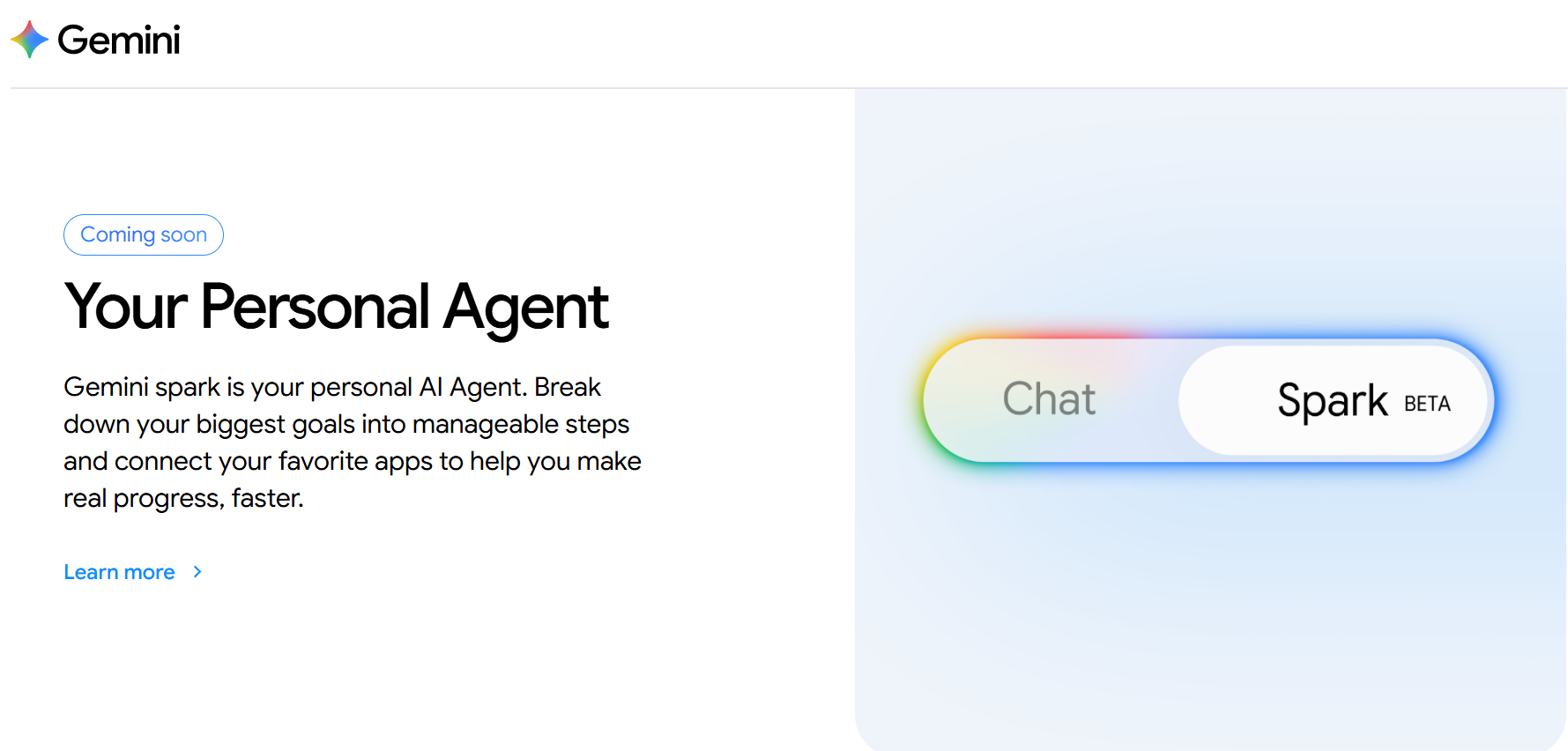
Gemini Spark : Log in to your Google AI Pro/Ultra account, go to gemini.google.com/spark , switch to Spark mode, enter a prompt to open the Google homepage in a remote browser, authorize, and click "Take over task" to take over the browser. Enter https://muse.ai/join in the address bar to complete the registration. Success rate is affected by account eligibility and regional restrictions.Cloud Phone : Create an independent Android environment, configure network, language, and time zone, open Chrome, visit the Muse website, and register as prompted. After successful registration, you can install the Muse App on Google Play. Cloud phones provide an independent mobile device environment, but cannot guarantee the removal of regional restrictions.
DaDesktop Cloud Desktop : Create a cloud desktop in the US (starting from approximately $3/day, Windows licenses may incur an additional $1/day), and register via a browser within the remote desktop by accessing the Muse website. The advantage is that it eliminates the need for local proxy configuration.
Free Quota and Invitation Code Token
Registration is completely free . New users automatically receive a free usage allowance, which resets weekly. Paid plans are as follows: Power approximately $20/month (500 million tokens per week), Max approximately $100/month (3 billion tokens per week). Paid subscriptions automatically renew monthly by default. If you only plan to use the service for a short period, remember to note the renewal date and cancel manually.within 48 hours of registration : After logging in, go to Settings → General → Usage , find "Redeem invite code," enter a valid invitation code, and you can check the crediting status on the "Additional tokens" or Usage page after successful redemption. For the mobile app, you can find the Redeem token entry in Settings. Specific eligibility and reward amounts are subject to the current redemption page.
Muse fully supports Chinese, allowing users to ask questions and assign tasks directly in Chinese.
Troubleshooting Common Problems
If you encounter an error, don't rush to start the registration process from scratch. First, check which step is causing the problem, and then change only one variable at a time to help pinpoint the cause.1.The message "You are currently unable to create a new account" is mostly due to an incorrect network exit country or repeated attempts in a browser used for logging into multiple accounts. Follow the steps above to create a dedicated window, configure a US/Canada proxy, test your network connection, and then reopen Muse. If you successfully access the CAPTCHA or age verification page, the environmental obstacle has been eliminated. If you still receive the message, stop and do not repeatedly submit. Take a screenshot of the complete message. If the page simultaneously displays a security check or identity verification request, complete the verification first; otherwise, you will need to contact Meta support.
2.The region is unavailable : Check the actual export country in the dedicated profile and verify the account against the open conditions listed on the page.
3.Displaying "Waiting for Opening" or "On the Waiting List" : Check if there are any entry points on the page to join the waiting list or confirm your contact information. If so, submit and save the result. If the page does not provide a specific opening time, you can only wait for the platform to notify you.
If you are logged in but the connection keeps showing as "connecting" : First, check the network connection of the profile in the anti-detect browser. If the check fails, check the proxy configuration and whether the node is available; if the check is normal but Muse is still spinning, record the operation steps, complete prompts, and the time of occurrence, and hand it over to platform support for processing.